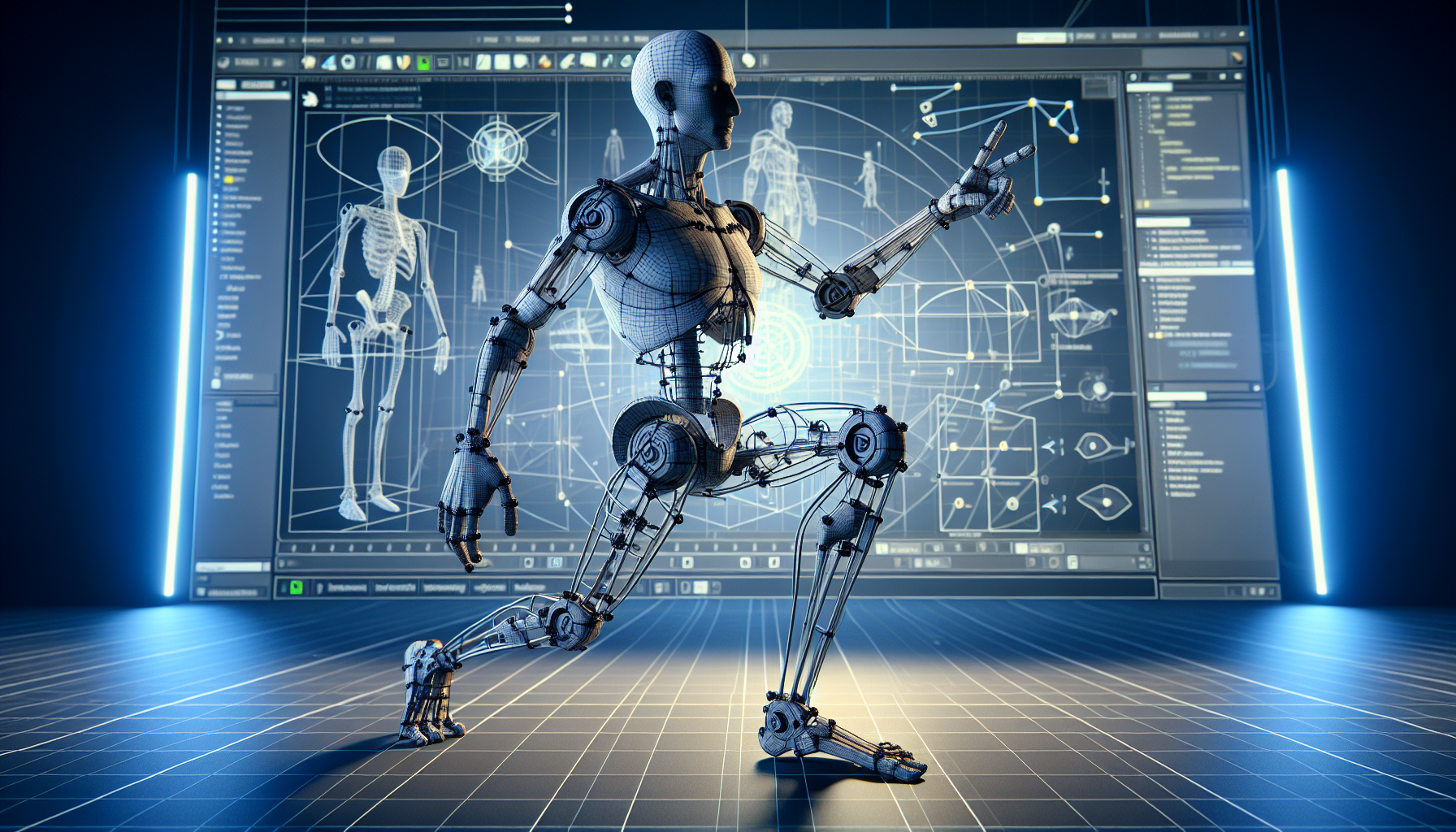
Welcome to the fascinating world of Control Rig in Unreal Engine 5! If you’re ready to take your character animation to the next level, you’ve come to the right place.
Control Rig provides powerful rigging tools directly in Unreal Engine, allowing you to create dynamic, programmable rigs that can enhance your animation workflows. Here’s how you can get started:
Step 1: Create Your Control Rig Asset
- Open Unreal Engine 5 and navigate to your project’s Content Browser.
- Right-click in the Content Browser, select Animation, and then choose Control Rig from the context menu.
- Name your new Control Rig asset (for example, “MyCharacterRig”) and double-click on it to open the Control Rig Editor.
Step 2: Import Your Character Model
- If you haven’t already, import your character model (skeletal mesh) into Unreal Engine.
- Ensure your skeletal mesh is properly set up with bones that can be rigged. If you’re just practicing, you can use one of Unreal’s provided meshes.
Step 3: Assigning the Skeleton
- In the Control Rig Editor, you need to specify which skeleton your rig will control. In the Rig tab, there’s an option to select your Skeleton.
- Choose the skeleton associated with your character model.
Step 4: Create Rig Controls
- Switch to the Layout tab, where you’ll see your character’s skeleton.
- Add Controls: Right-click on a bone, and you’ll see an option to Create Control. This control will now manipulate the bone directly. It’s good practice to start with primary controls like hips, shoulders, and knees.
- Customize Controls: You can change the shape, color, and size of the controls to make them user-friendly and intuitive.
Step 5: Define Rig Logic with Blueprint
- Switch to the Rig Graph tab. Here you will define the behavior of your rig using a node-based scripting system, similar to Unreal’s Blueprints.
- Create Nodes: Drag connections from your controls and bones to create movement logic. For example, you might create an IK (Inverse Kinematics) chain from the foot control to the thigh bone.
- Compile and Save: Regularly compile and save your work to ensure all scripts run correctly.
Step 6: Test Your Control Rig
- Go back to the Layout tab and try moving the controls you’ve created. Observe how they affect the character model.
- Adjust your nodes in the Rig Graph if the movements aren’t behaving as expected.
Step 7: Animate Using Sequencer
- Open or create a new Level Sequence in the Sequencer Editor.
- Add your character model to the sequence.
- Bind the Control Rig: With your character selected in the timeline, click on + Track, select Control Rig, and choose the rig you’ve created.
- Keyframe the Controls: Move your playhead to the desired time, adjust your rig controls in the viewport, and press the keyframe button to record the pose.
Step 8: Fine-Tuning and Advanced Setup
- Explore advanced options like creating layered animations or procedural animations based on gameplay mechanics.
- Utilize the full power of Blueprints to create custom functions within your Control Rig for actions like walking, jumping, or interactive gestures.
Conclusion
Congratulations! You’ve just taken your first steps into rigging with Unreal Engine’s Control Rig. As you become more familiar with the toolset, you’ll discover just how flexible and powerful Unreal Engine 5 can be for animators. Dive into more complex rigs, experiment with dynamic simulations, and perhaps start scripting custom movements tailored to your characters. Happy animating, and may your creations come to life in ways you’ve never imagined before!
