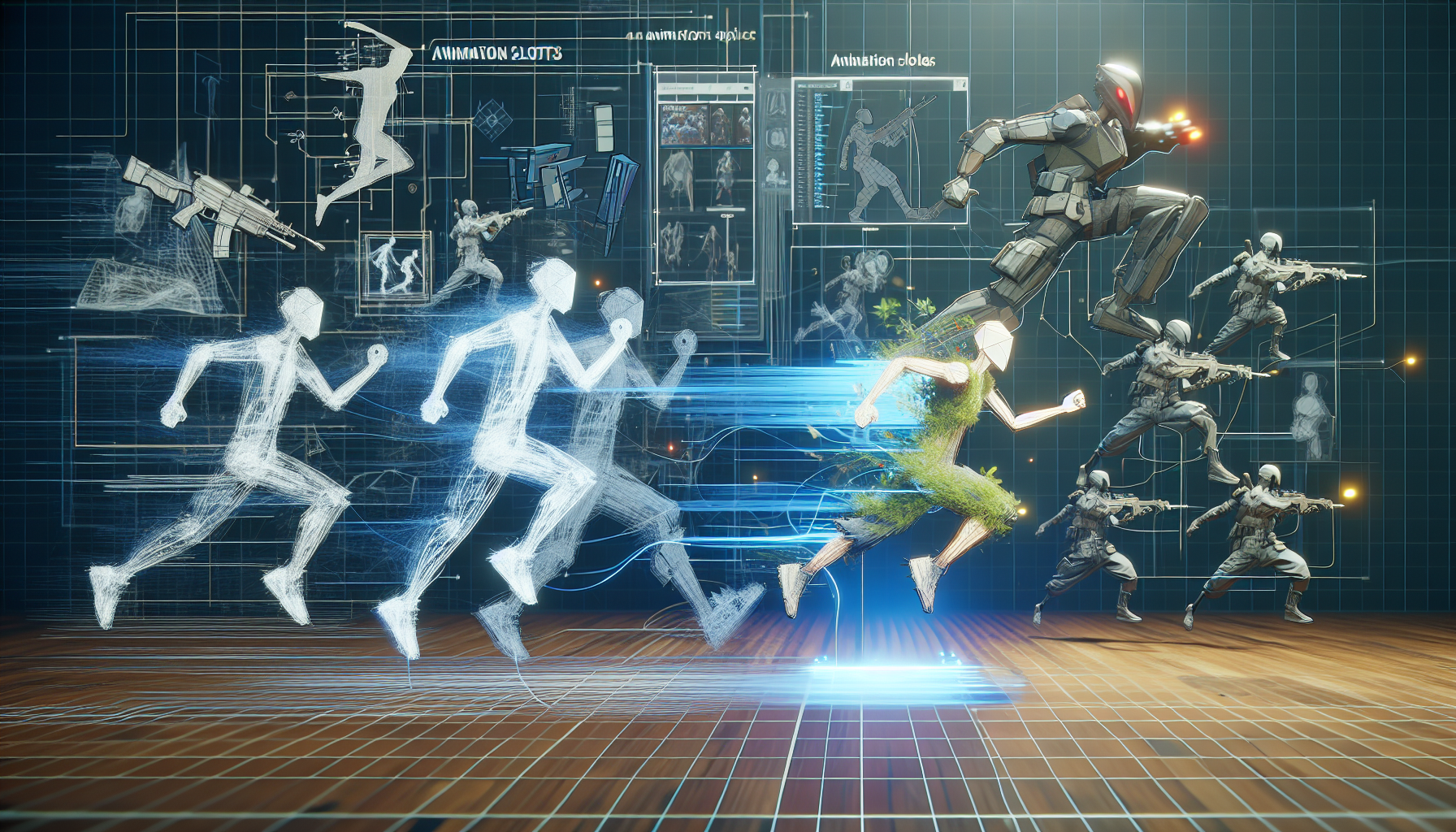
In the vast, bustling workshop that is Unreal Engine, Animation Slots are like specialized tool stations where animations get fine-tuned for specific tasks. Picture a world where your character can be running one moment, seamlessly start reloading a weapon the next, and then switch to a dance move—all without missing a beat. That’s the power of Animation Slots, giving your characters the fluidity of a Swiss army knife in a digital wilderness.
Why Use Animation Slots?
Think of Animation Slots as your animation traffic controllers. They manage where and when animations play, allowing you to layer actions (like reloading a gun while running) without the two animations throwing a digital tantrum. They’re about breaking down complex behaviors into manageable, interchangeable pieces—like playing with building blocks, but each block is a potential Oscar-winning performance.
Setting Up Animation Slots: A Step-by-Step Guide
Setting up Animation Slots isn’t just a technical endeavor—it’s a form of high art. Here’s how you can sculpt your animations into a masterpiece:
- Open the Anim Slot Manager:
- Navigate to the Animation Blueprint of your choice and find your way to
Window > Anim Slot Manager. This is your command center for creating and managing slots.
- Navigate to the Animation Blueprint of your choice and find your way to
- Creating Slots:
- In the Anim Slot Manager, you’ll see a default slot named
DefaultSlot. Feel free to add your flavor by clickingAdd Slot. Name it something memorable—this isn’t the place for “Slot123.”
- In the Anim Slot Manager, you’ll see a default slot named
- Assigning Slots to Animations:
- Got a fancy animation for shooting or a sassy dance move? Assign it to a slot by setting up Animation Montages that specify which slot each part of the animation should use. Each montage can then play its animation through the assigned slot, like a DJ choosing which track to spin.
Why Slots Are Game-Changers
- Flexibility: Slots let you swap animations on the fly, allowing for dynamic gameplay where characters react in real time to player inputs or game events.
- Control: Manage which parts of the body are affected by different animations—upper body can reload a weapon while the lower body continues running, avoiding that awkward ‘robotic’ animation transition.
- Efficiency: By reusing slots across different characters or scenarios, you save on both development time and resources, making your game as efficient as it is dynamic.
Tips for Optimizing Your Animation Workflow with Slots
- Organize Thoughtfully: Keep your slots organized by naming them clearly and logically. ‘UpperBodyActions’ and ‘FullBodyEmotes’ tell you at a glance what they do, saving you from a debugging nightmare.
- Layer Strategically: Use slots to layer animations wisely. Overlapping too many animations can lead to visual chaos. Think of it as directing a symphony, not a one-man band.
- Test Continuously: The only way to ensure your slots are working correctly is to test them in all the scenarios you imagine your character will encounter. What looks good in an animation editor might not translate perfectly into gameplay.
Conclusion: The Art of Digital Choreography
Using Animation Slots in Unreal Engine is akin to choreographing a dance where each dancer knows exactly when to step in and shine. It’s about creating a seamless user experience where each action flows into the next, controlled by the invisible strings you pull from behind the scenes. So set up those slots, refine those transitions, and watch as your characters move through your game world with the grace of a well-rehearsed ballet troupe. And remember, in the theater of game development, every slot is your stage.
