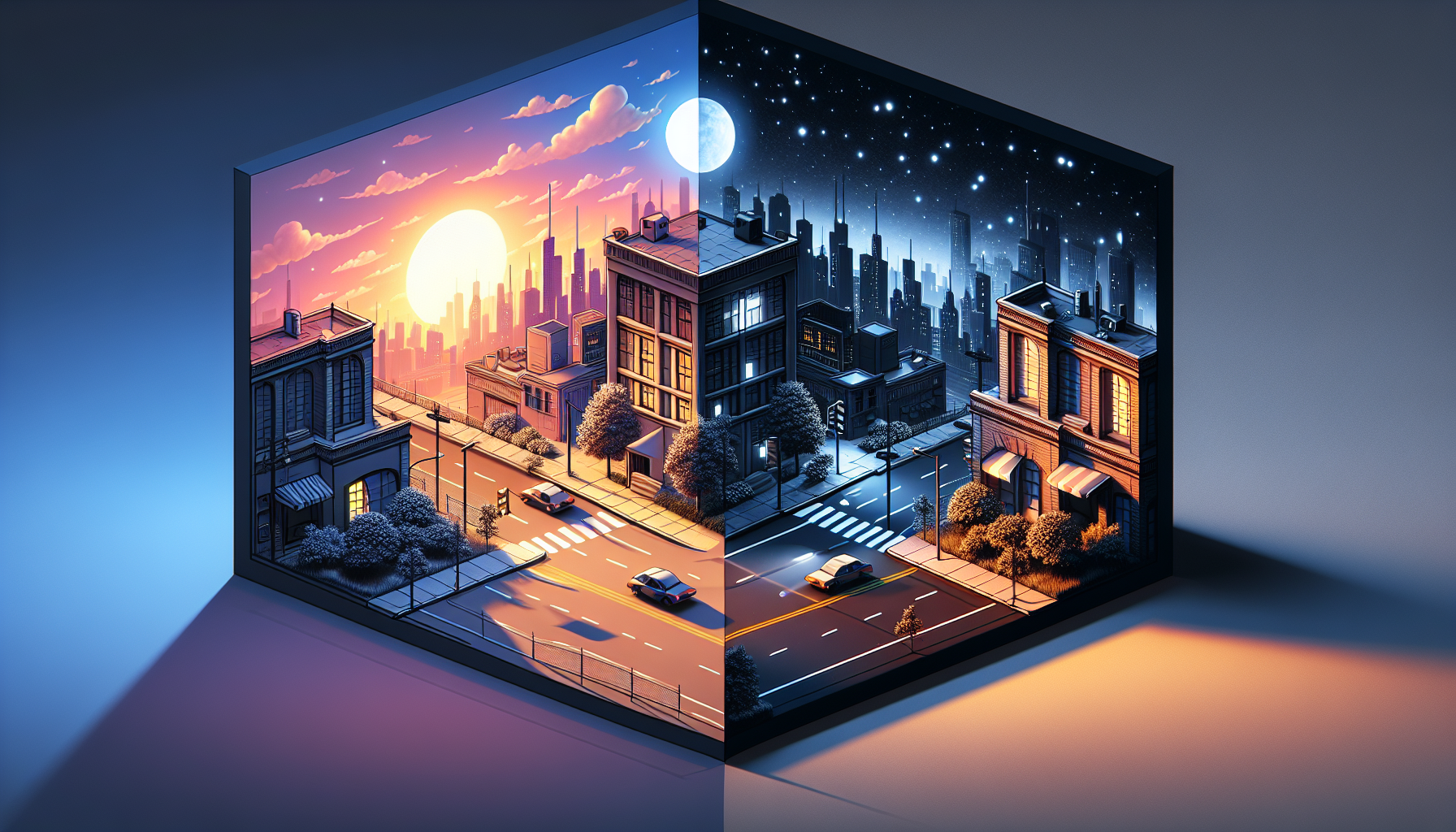
Precomputed lighting scenarios are akin to having a wardrobe of lighting setups that you can switch out depending on the mood you’re trying to set in your scene, all without the hassle of redressing the entire set. Imagine you’re producing a play, and instead of physically changing the lights for each scene, you just flip a switch, and voilà, the lighting changes to match the drama or serenity of the moment. That’s essentially what precomputed lighting scenarios allow you to do in your digital environments.
So, What Exactly Are Precomputed Lighting Scenarios?
Precomputed lighting scenarios are a feature in Unreal Engine that allows you to create multiple lighting setups within a single level. Each scenario contains its own set of static lighting information, meaning you can precalculate how light interacts with the environment under different conditions. It’s perfect for scenes that need to depict various times of day, weather conditions, or even fantastical atmospheres that defy the typical rules of sun and shadow.
How Do They Work?
- Multiple Versions, One Level: Essentially, you’re creating different versions of lighting for a single level. Each “version” is stored as a separate scenario, but only one is active at a time.
- Precomputed Magic: Since the lighting is precomputed, Unreal Engine calculates all the lighting interactions like shadows, reflections, and light bounces in advance. These calculations are stored and quickly loaded when the scenario is activated, allowing for complex lighting effects without real-time computation costs.
- Swap On the Fly: You can switch between these precomputed scenarios at runtime, which is like changing between different lighting setups in a theatre production with the simplicity of a scene transition.
The Technical Spotlight: How to Set Them Up
Here’s a quick guide on setting up precomputed lighting scenarios in Unreal Engine:
- Create Your Level: Design your level with all the static geometry and materials that will interact with the lighting.
- Set Up Lighting: Place your lights as you normally would for your base scenario. This could be your standard daylight setting.
- Enable Lighting Scenarios: In the World Settings, you must check “Support Lighting Scenarios”. This lets Unreal know you’re planning to use multiple lighting setups.
- Duplicate Level for New Scenarios: Make a copy of your level for each new lighting scenario. Adjust the lights in each copy to reflect different lighting conditions, such as nighttime, stormy weather, or indoor lighting.
- Bake Each Scenario: For each version of the level, bake the lighting. Unreal will store the precomputed lighting data separately for each scenario.
- Switching Scenarios: At runtime, you can switch between these scenarios using Blueprints or C++ code, depending on the context or user interaction.
When to Use Them?
Precomputed lighting scenarios shine (pun intended!) in projects where environmental conditions significantly impact the scene’s mood and where performance optimization is critical. They’re ideal for:
- Games: Changing levels or conditions without loading new levels.
- Architectural Visualizations: Showing the same space under different lighting conditions.
- Film Pre-visualization: Quickly demonstrating different times of day or lighting setups within the same scene.
However, the beauty of these scenarios is also in their complexity. They require careful planning and management, as each scenario increases the amount of data your project needs to handle. It’s a balancing act between achieving cinematic quality lighting and maintaining performance.
So, there you have it—the technical theatre of Unreal Engine’s precomputed lighting scenarios, where each lighting change is a curtain call for a new performance in your digital world. Just like in a well-directed play, the right lighting can make or break the scene. With precomputed scenarios, you hold the director’s baton, orchestrating the light to perfect your visual storytelling.
