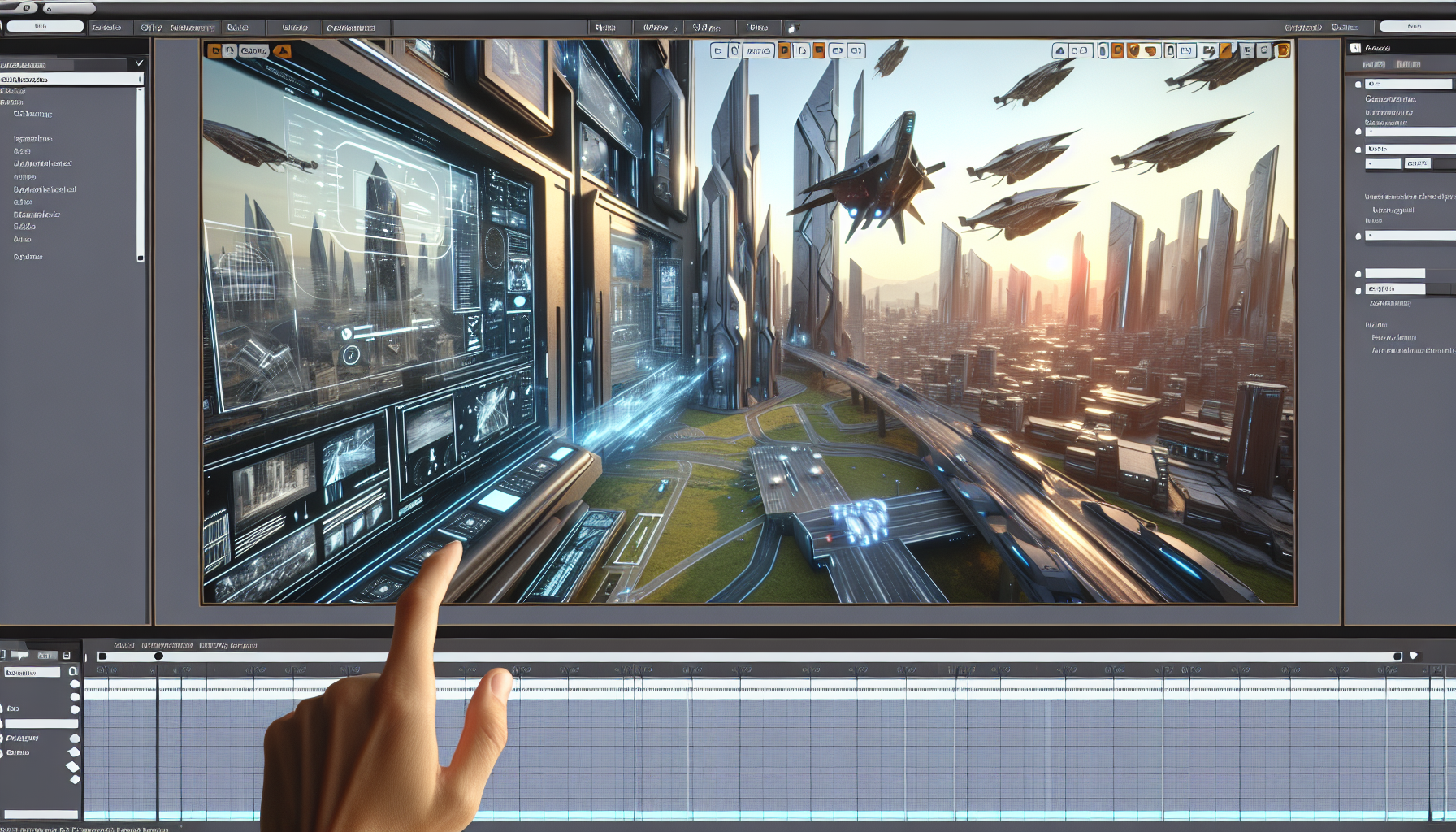
In the realm of game development and scene creation, the ability to visualize and interact with your digital environment is not just useful—it’s essential. Enter the world of Unreal Engine’s Editor Viewports, the windows through which creators like you gaze into the virtual worlds you conjure. These aren’t just simple windows, though; they are complex tools equipped with a myriad of features designed to enhance your workflow and bring your creative visions to life with precision and ease.
What are Editor Viewports?
Think of Editor Viewports as your control panel for viewing and interacting with the 3D world you’re building. Whether you’re placing a sneaky goblin in a shadowy dungeon or designing the sprawling streets of a futuristic city, the viewports in Unreal Engine offer a direct look into the scene, providing various perspectives and tools that make your task as intuitive as possible.
Key Features of Editor Viewports
1. Multiple Perspectives: Switch between different camera angles—Top, Front, Side, and Perspective—to get a comprehensive view of your environment. Each angle offers a unique vantage point to help you place and manipulate objects with precision.
2. Real-Time Updates: See your changes reflected instantly. Move a light, and watch as shadows shift; adjust a texture, and see the results in real time. This immediate feedback is crucial for fine-tuning the aesthetics and functionality of your scenes.
3. Camera Controls: Navigate through your scene with ease using intuitive camera controls. Pan, zoom, and orbit around objects to inspect details or get an overall view of your creation.
4. Viewport Modes and Visualizations: Utilize various modes like Wireframe, Unlit, Lit, and more to focus on different aspects of your scene. These modes can help you concentrate on geometry, lighting, or materials without distraction from other elements.
Tips and Tricks for Using Editor Viewports Effectively
1. Split-Screen Magic: Use the ability to split your viewport into multiple panes, each showing a different view or mode of your scene. This can be incredibly useful for comparing effects, ensuring consistency, and multitasking within the same workspace.
2. Bookmark Your Views: When you find a view that offers particularly useful insight into a part of your scene, bookmark it! Unreal Engine allows you to save specific camera positions so you can return to them with a simple shortcut, streamlining your workflow and saving time.
3. Use Show Flags: These are powerful tools within the viewport that let you toggle the visibility of certain elements. Want to focus on lighting without being distracted by textures? Turn off the material visibility. Need to check collision meshes? There’s a show flag for that too.
4. Leverage Lighting Visualization: Understanding how light behaves in your scene is crucial. Use the lighting visualization tools to check how lightmaps are being applied, where shadows fall, and how different lighting settings affect the mood of your environment.
5. Customize Your Toolbar: Unreal Engine’s viewports are highly customizable. Tailor your viewport toolbars to include the tools and shortcuts you use most frequently, ensuring they’re always at your fingertips when you need them.
Why Viewports Are Game Changers
The Editor Viewports in Unreal Engine are more than just windows into virtual worlds; they are dynamic platforms that provide critical visual feedback, facilitating an interactive design process. They empower creators to make informed decisions about layout, lighting, and aesthetics, helping to bridge the gap between imagination and implementation.
Conclusion: Your Window to Creation
Unreal Engine’s Editor Viewports offer a robust and intuitive way to engage with your projects. By mastering these tools, you enhance not only your efficiency but also the quality of your creations. Whether you’re a seasoned developer or a newcomer to the scene, understanding and utilizing the full potential of Editor Viewports is essential for anyone looking to bring their virtual environments to life. So dive in, experiment with different configurations and settings, and watch as your digital worlds unfold in stunning detail right before your eyes.
