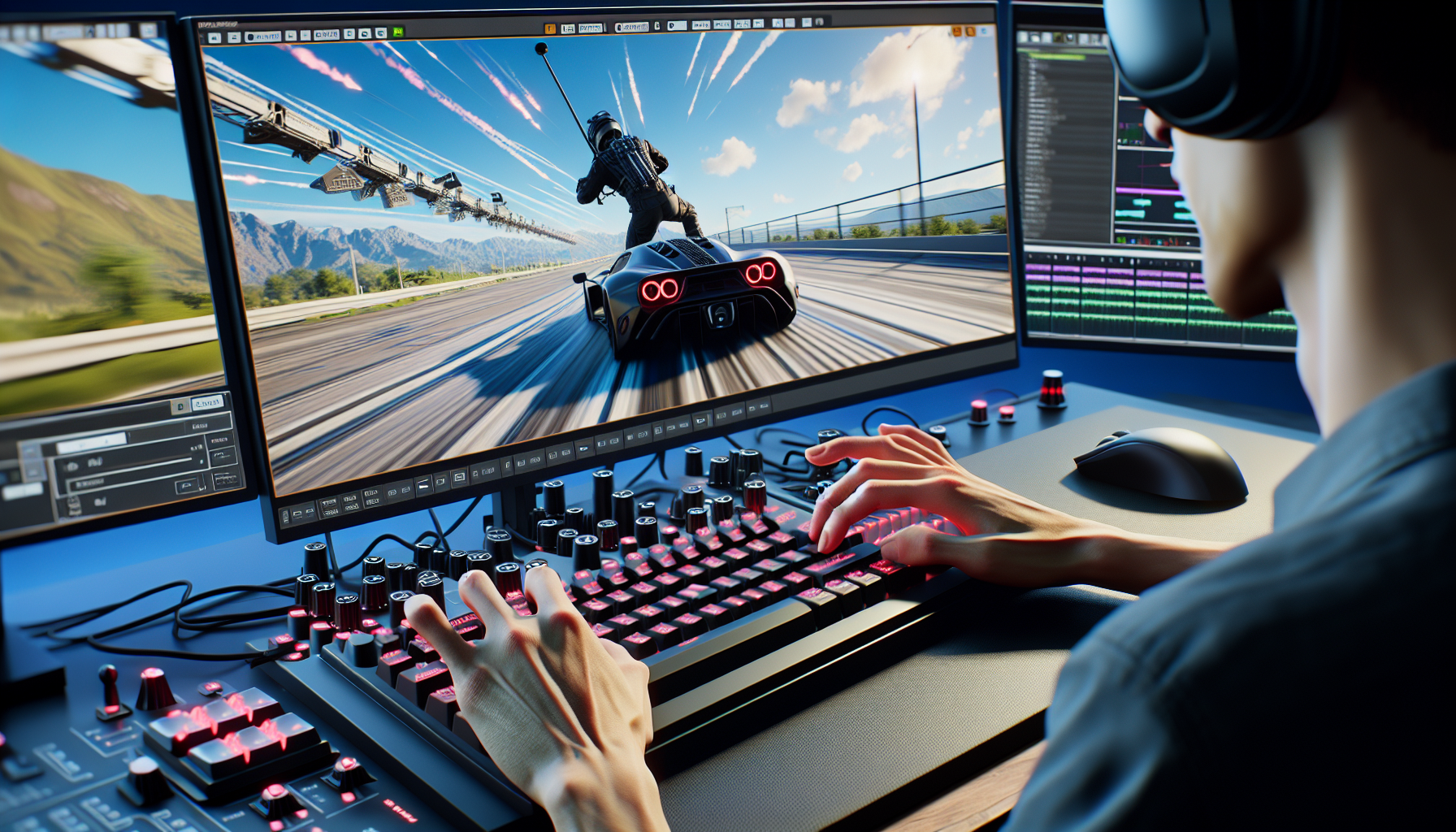
Welcome to the world of Unreal Engine, where the cine camera isn’t just a tool—it’s your passport to crafting visually stunning cinematic sequences. But navigating this powerful tool can feel like learning to drive a high-performance sports car; it’s thrilling, yes, but you better know which pedals to push! Today, let’s demystify the art of moving the cine camera in the viewport using a harmonious blend of keyboard shortcuts and mouse actions. Buckle up, it’s time to turn you into a keyboard wizard and a mouse maestro!
The Essentials of Camera Movement
When it comes to moving your cine camera in Unreal Engine, think of your keyboard and mouse as the yin and yang of your toolkit. Each has its strengths—precision and speed—and when used together, they create a seamless dance of cinematic motion. Here’s how you can harness these tools to create fluid, dynamic camera movements that would make even Spielberg raise an eyebrow.
Keyboard Shortcuts: Your Digital Wand for Precision
The keyboard is your go-to for precise, measured movements. Here’s a cheat sheet for the most crucial shortcuts:
- W, A, S, D: These keys are your bread and butter for basic camera navigation. W and S move the camera forward and backward, while A and D will strafe left and right, respectively. Think of them as your digital dolly.
- E and Q: Need to crane up or down? E and Q have you covered, allowing you to elevate or lower the camera smoothly, perfect for those grand, sweeping shots.
- R and F: Rapid zooming in and out, respectively. These are great for quickly adjusting your focal length or getting a closer look at your scene’s details.
- Holding Shift: While using any of the above keys, holding Shift will accelerate the camera’s movement, useful for fast traversing across vast landscapes or sets.
- Ctrl + Drag: For precision framing, holding Ctrl while using the mouse to drag the camera will slow down the movement, giving you fine control over camera placement.
Mouse Actions: Your Scepter for Speed
The mouse provides intuitive, quick camera adjustments, making it indispensable for dynamic cinematography.
- Right-Click + Drag: The primary action for rotating your camera view. It’s like swiveling your camera head on a tripod; essential for adjusting your angle of view and framing your shot.
- Middle Mouse Button (Scroll Wheel) + Drag: Panning your camera. This action mimics a track dolly, smoothly shifting your camera’s position laterally or vertically without changing the orientation or angle.
- Scroll Wheel Up/Down: A quick way to dolly in and out. Rolling the scroll wheel adjusts the camera’s distance to the subject, perfect for dynamic zoom effects or simply refining your composition.
Combining Keyboard and Mouse: Symphony of Movements
While the keyboard provides the baseline movement, the mouse adds layers of complexity and nuance:
- W + Right-Click + Drag: Move forward while adjusting your view angle, ideal for moving into a scene while keeping your subject in perfect frame.
- Shift + Middle Mouse Button + Drag: Quickly scan across your environment. It’s like having a drone at your fingertips, allowing for broad, sweeping movements across your digital set.
- Ctrl + Scroll Wheel: Fine-tune your zoom for meticulous shot composition, ensuring every pixel is exactly where you want it.
Tips for Smooth Camera Operation
- Practice Makes Perfect: Spend time just moving the camera around your scenes. The more familiar you are with these controls, the more intuitively you’ll be able to craft your shots.
- Customize Keybindings: Unreal Engine allows you to customize your keybindings. Tailor them to your workflow for even greater efficiency and comfort.
- Use Cinematic Viewports: For even more control, toggle the cinematic viewport options in Unreal Engine, which optimize your view for filmic composition.
Conclusion: Master of Your Virtual Domain
Mastering camera movement in Unreal Engine with keyboard shortcuts and mouse actions is akin to learning to conduct an orchestra; every motion and shortcut contributes to the creation of your visual symphony. Whether you’re crafting an intimate indie game or the next blockbuster hit, the power lies at your fingertips. So go forth, unleash your inner Spielberg, and transform your virtual landscapes into cinematic masterpieces, one frame at a time.
