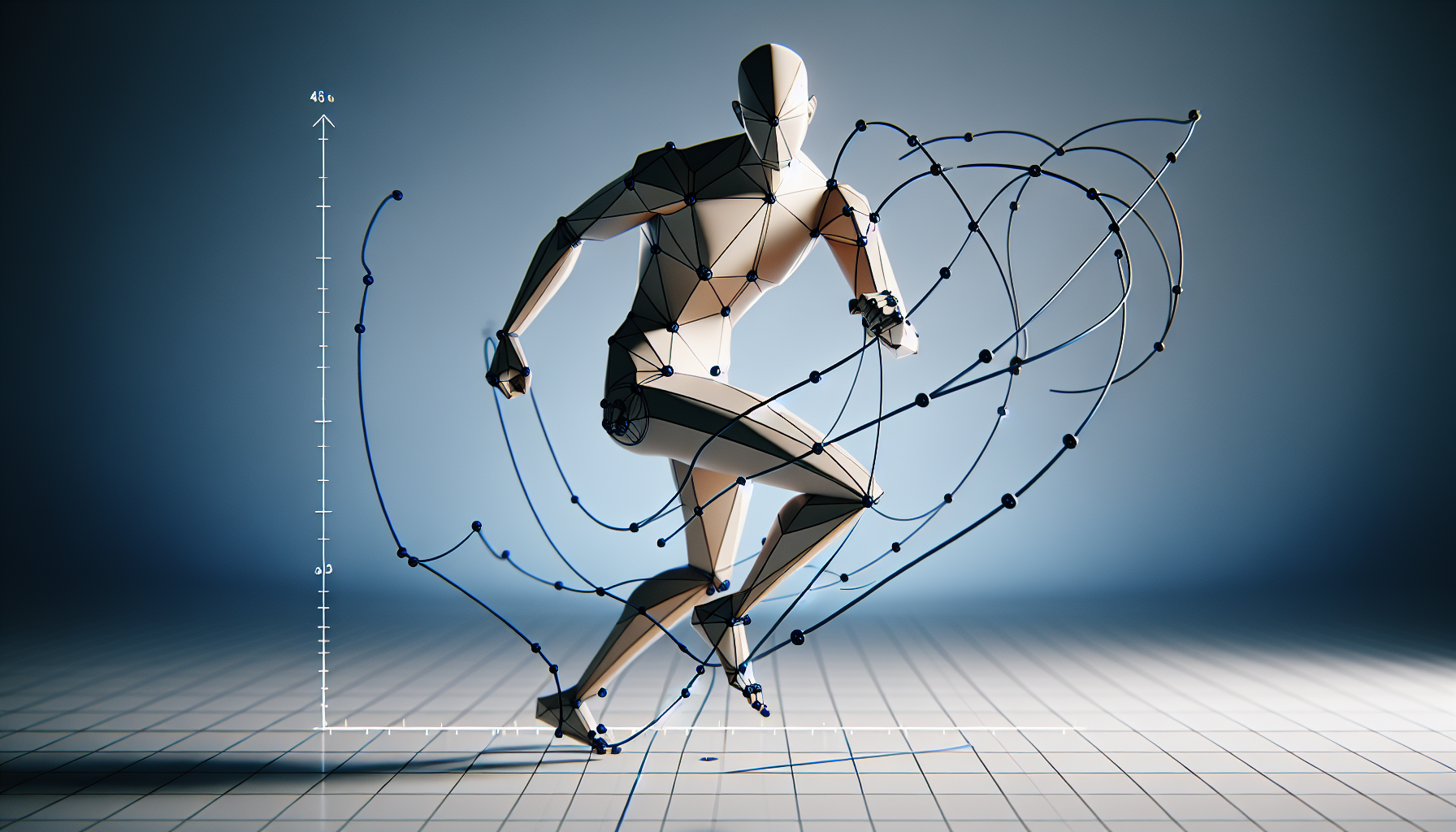
Welcome to the enchanting world of curve-driven animation in Unreal Engine, where the mundane laws of linear storytelling bow down to the whims of your bezier curves. Ever wanted to control your character’s dance moves as precisely as a puppeteer with strings? Or perhaps make them walk as if they’re perpetually on a tightrope of your making? That’s the magic we’re unpacking today—using curve data to breathe life into your characters, one meticulously controlled step at a time.
The What and Why of Curve-Driven Animation
Curve-driven animation is akin to having a dimmer switch for every move your character makes. Instead of animations being rigid and uniform, they can dynamically respond to the game environment and player inputs. Want your character’s smile to widen as they find more loot? Curve it! Need their stride to adjust based on terrain steepness? Curve that too!
Setting the Stage: Creating a Pose Asset
Before the curves come into play, we need something to apply them to—enter the Pose Asset. Here’s how to get started:
- Capture the Pose:
- Select an animation where your character is flaunting the moves you want to control. Right-click this animation in the Content Browser, and select ‘Create PoseAsset’. This captures various frames of the animation as individual poses.
- Naming and Claiming Poses:
- Once your Pose Asset is created, it’s time to make sense of the jumble. Rename each pose to reflect its action, like ‘right_foot_forward’ or ‘left_arm_raised’. This will save you from future headaches when you’re trying to make your character moonwalk.
Choreographing with Curves
With your Pose Asset ready, it’s time to turn those static poses into a ballet of controlled motion.
- Create the Animation Sequence:
- Right-click in the Content Browser under the appropriate folder (like Content/Mannequin/Animations) and select ‘Create Animation/From Reference Pose’. Name it something catchy like ‘CurveWalk’.
- Introducing Curves:
- Open your shiny new animation and under ‘Curves’, click ‘Add Curve’. Add curves corresponding to each pose you plan to use. These curves will act as the levers controlling how much each pose influences the animation at any given time.
- Plotting the Performance:
- Here’s where you play director. Move your timeline to where you want the pose to start influencing the animation and Shift+Click to create a keyframe. Set the curve value at this keyframe to determine how strongly the pose should influence the overall animation. Continue this process along the timeline, choreographing your character’s movements by adjusting curve values.
Tips for a Show-Stopping Routine
- Smooth Transitions: Ensure your curve values transition smoothly from one keyframe to another to avoid jerky movements. Think of it as easing your character into and out of each pose.
- Balancing Act: Too many poses can make your animation erratic, too few can make it bland. Find the right balance for your scene’s needs and your character’s personality.
- Preview and Iterate: Often what you envision isn’t what plays out on the screen. Preview and adjust your curves repeatedly. It’s a bit like seasoning a dish—you need to taste and adjust until it’s just right.
Conclusion: The Fine Art of Digital Puppetry
Curve-driven animation allows you to control your Unreal Engine characters with the precision of a puppeteer, where each movement can be fine-tuned to react dynamically to gameplay. It’s a powerful way to add realism and responsiveness to your animations, ensuring that your characters not only move through your game world but truly interact with it. So, grab those curves and start directing—your characters are waiting for their cue to dance.
