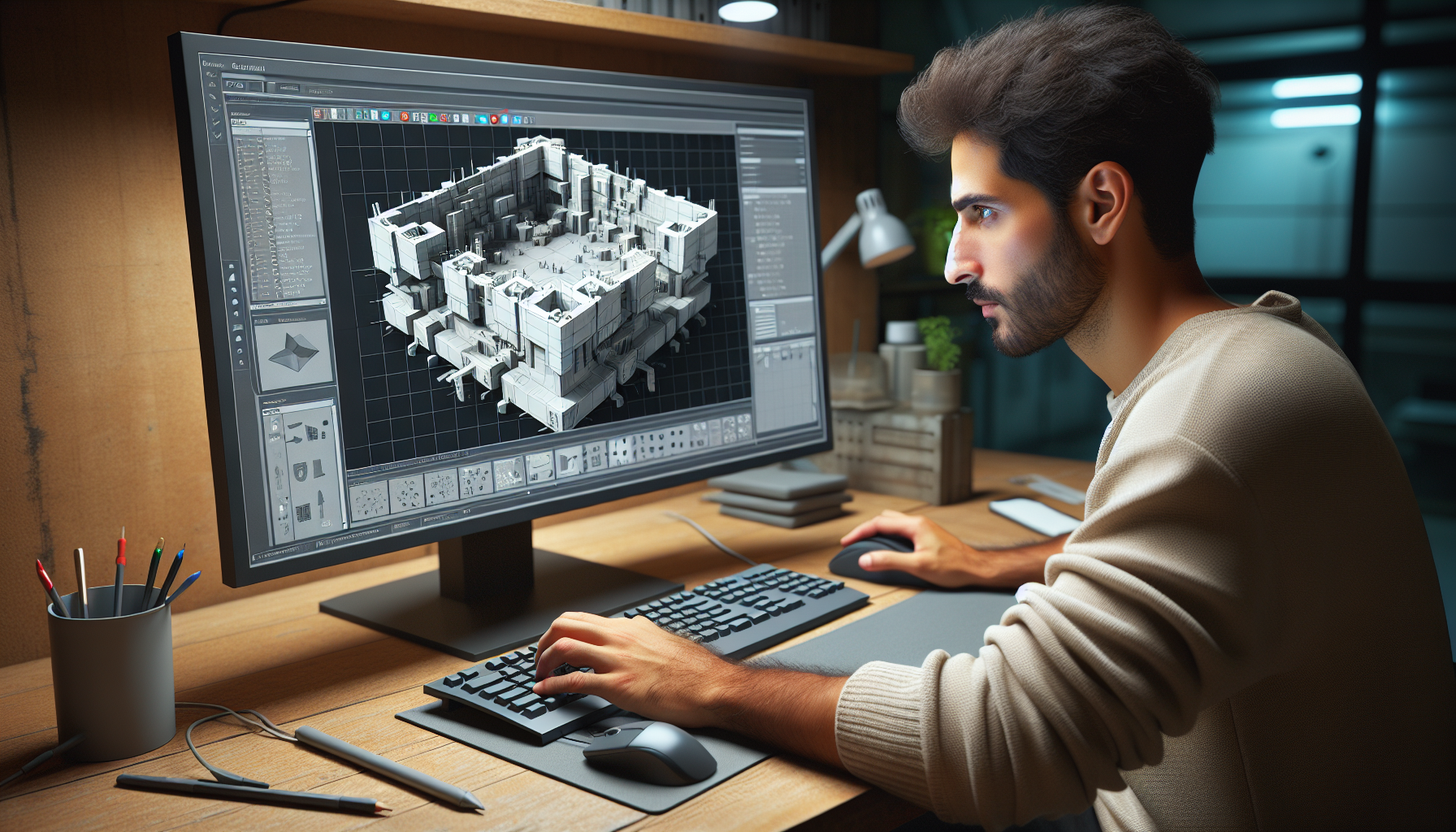
When it comes to designing a level in Unreal Engine—or any game engine for that matter—moving and arranging objects is a fundamental task that can significantly impact both the aesthetics and functionality of your environment. Getting this right isn’t just about making things look pretty; it’s about creating a space that feels intuitive and engaging for players.
Here are some best practices for moving and arranging objects, including when to use the keyboard versus the mouse.
1. Start with a Plan
- Pre-Design: Before you start moving anything, sketch out a rough layout of your level. This can be a simple drawing or a more detailed schematic. Understand the flow, major components, and how players will interact with the environment.
2. Use the Right Tools
- Grid Snapping: For larger moves, especially when placing structural elements like walls or floors, use grid snapping to ensure that everything aligns correctly. This avoids gaps and misalignments that can break immersion or cause technical problems.
- Mouse for Major Placement: Use the mouse for placing and moving large objects where you need a broader visual context. The mouse is intuitive and gives you a good feel for the space.
- Keyboard for Precision: After placing an object with the mouse, switch to the keyboard for fine-tuning. Nudging objects with arrow keys or specific move commands allows for precise placement without the risk of overshooting your mark.
3. Incremental Movement
- Adjust Grid Settings: Unreal Engine allows you to adjust the grid size for movement. Use larger grids for broad strokes and smaller grids for detailed work. This allows you to scale your movements to the level of precision needed at the moment.
- Use Hotkeys for Efficiency: Learn and use hotkeys to toggle between different grid sizes without breaking your workflow. This speeds up the process and keeps you focused.
4. Check Multiple Angles
- Orbit and Zoom: Regularly orbit around the object or zoom in and out to see how it sits in the environment from different perspectives. This is crucial for ensuring the object not only fits aesthetically but also functions as intended in gameplay.
- Camera Views: Use different camera views (top, side, perspective) to check alignment and interaction. This is especially important for multi-level designs where verticality plays a role.
5. Layer and Group Objects
- Grouping: Group related objects together. This simplifies moving and scaling as it allows you to adjust entire sections of your level without the need to reselect individual components each time.
- Layers: Use layers to manage visibility and editability of objects. This can help you focus on individual aspects of your level without other elements getting in the way.
6. Iterate and Test
- Playtesting: Regularly jump into play mode to see how your object placement affects gameplay. This can reveal issues that aren’t apparent in the editor view.
- Feedback Loops: Use feedback from testing to refine object placement. What works in design might not always translate well into actual gameplay.
7. Use Reference Points
- Align to Other Objects: When arranging objects, use existing structures as reference points to ensure cohesiveness across your design.
- Consistency: Maintain consistent spacing and alignment rules throughout your level to keep a uniform look and feel.
Conclusion: Precision Meets Intuition
In level design, both precision and intuition play critical roles. Starting with broad strokes using the mouse and refining with keyboard nudges allows you to combine the best of both worlds—creating levels that are not only technically sound but also artistically compelling. Whether you’re setting up an epic battlefield or a tranquil village, the way you move and arrange objects can spell the difference between a good level and a great one.
Remember, in the digital world, even the smallest detail can enhance the player’s experience, so wield your tools wisely!
