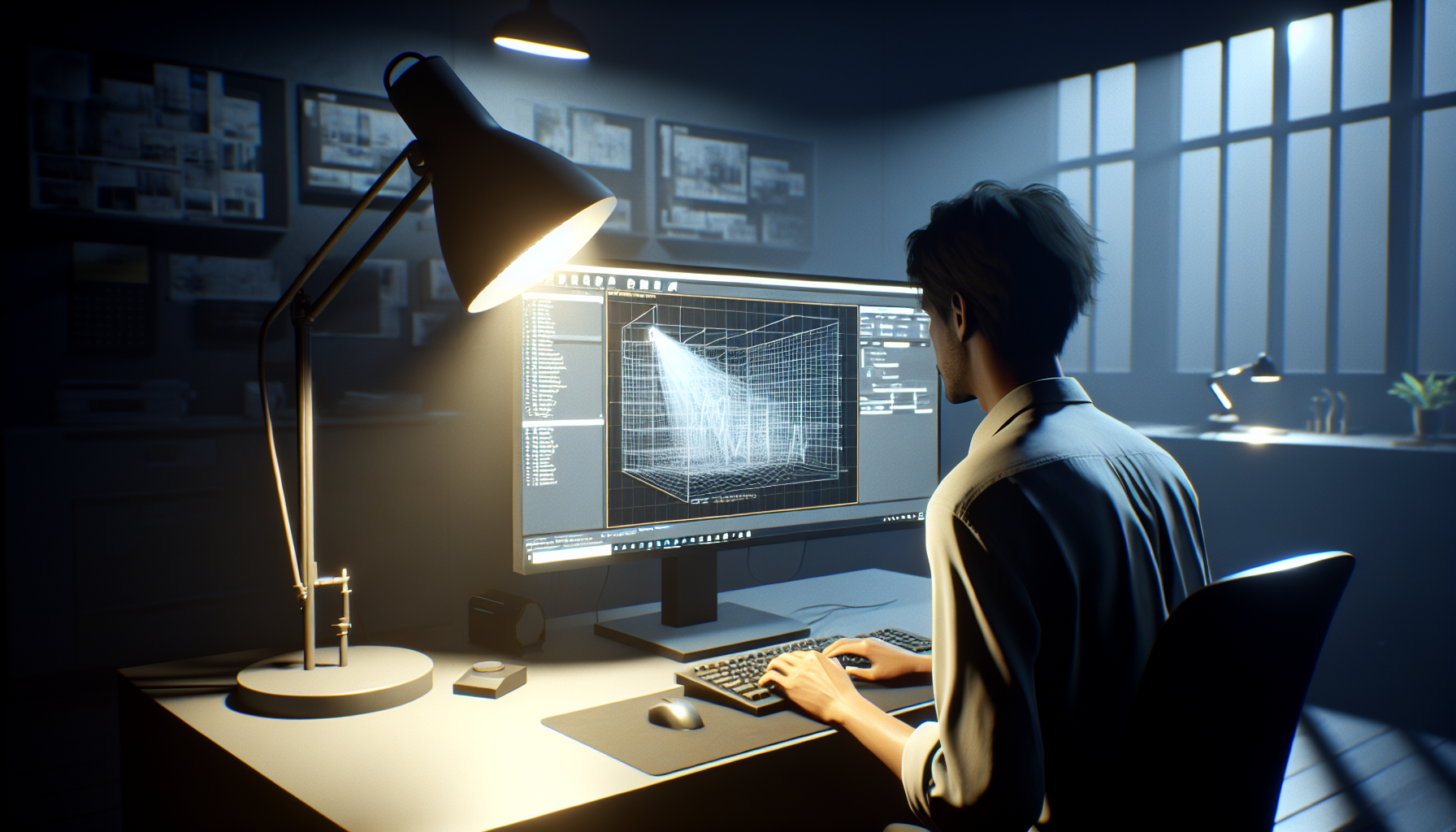
Ah, the elusive quest for realism in the virtual world! In Unreal Engine, this quest often leads us down a path lit (quite literally) by physical lighting units. Forget about arbitrary brightness levels; we’re talking scientifically accurate, measured, and utterly meticulous lighting that behaves just like it would in the real world. It’s like swapping out your childhood nightlight for the powerhouse beam of a lighthouse.
What Are Physical Lighting Units?
Physical lighting units in Unreal Engine are the math nerds of the lighting world. These units are based on real-world measurements—lumens, candelas, and lux. Yes, it sounds like a lineup for a new superhero team, but these are actually standardized units that quantify how much light is emitted, how bright it appears, and how much of it lands on surfaces.
Using physical lighting units means you’re playing by the rules of physics, which ensures that your lighting doesn’t just look real; it behaves real. It’s the difference between a painting of a candle and an actual candle lighting up a room with its warm glow.
Why Should You Care?
If you’re crafting scenes that need to mirror reality (think architectural visualizations, cinematic productions, or any project where lighting accuracy enhances storytelling), physical lighting units are your ticket to credibility. They ensure that your virtual environments react to light in ways that are predictable and understandable to human eyes, making your scenes believable, relatable, and immersive.
How to Use Physical Lighting Units in Unreal Engine
Step 1: Setting Up Your Scene
- First, ensure your project is set to use physically based units. Go to your project settings and tick the box for ‘Use Physical Lighting Units’.
Step 2: Choose Your Light
- Drop any light into your scene—be it a Point, Spot, or Directional light. Now, when you adjust its intensity, you’ll be doing so using real-world metrics like lumens or candelas.
Step 3: Adjusting the Intensity
- When you select your light in the viewport, the Details panel now offers options to adjust the intensity in terms of lumens (for overall power) or candelas (for intensity per solid angle). No more guessing games; adjust these settings based on real-life references or specifications.
Step 4: Fine-Tuning
- For area lights, you might also adjust using lux, which takes into account the size of the light emitting surface. This is great for getting just the right amount of illumination from fixtures like panels or strips.
The Dos and Don’ts with Physical Lighting Units
- Do: Research Your References Understanding the real-world lighting setups can help immensely. Knowing how bright a typical office light should be or the intensity of street lamps can guide your settings for more realistic environments.
- Don’t: Wing It With great power comes great responsibility. Don’t crank up those lumens to astronomical levels without good reason. More light doesn’t always mean better visibility; sometimes, it just means more glare.
- Do: Use HDRIs Wisely When using HDRI backgrounds for environment lighting, ensure they’re calibrated to real-world light levels. This helps maintain consistency between your artificial lights and natural lighting.
- Don’t: Forget About Mood Realism is great, but mood is also crucial. Even with physical lighting units, you should adjust colors, temperatures, and shadows to craft the atmosphere you want. Real doesn’t have to mean mundane.
Illuminating Your Path Forward
Embracing physical lighting units in Unreal Engine isn’t just about adhering to the laws of physics—it’s about crafting experiences that resonate on a human level. It’s about ensuring that when your audience steps into your world, everything feels just right, intuitively realistic, and visually stunning.
So go ahead, light up your virtual worlds with the precision of a physicist and the flair of an artist. After all, in the universe of Unreal Engine, you’re not just creating scenes; you’re simulating reality.
